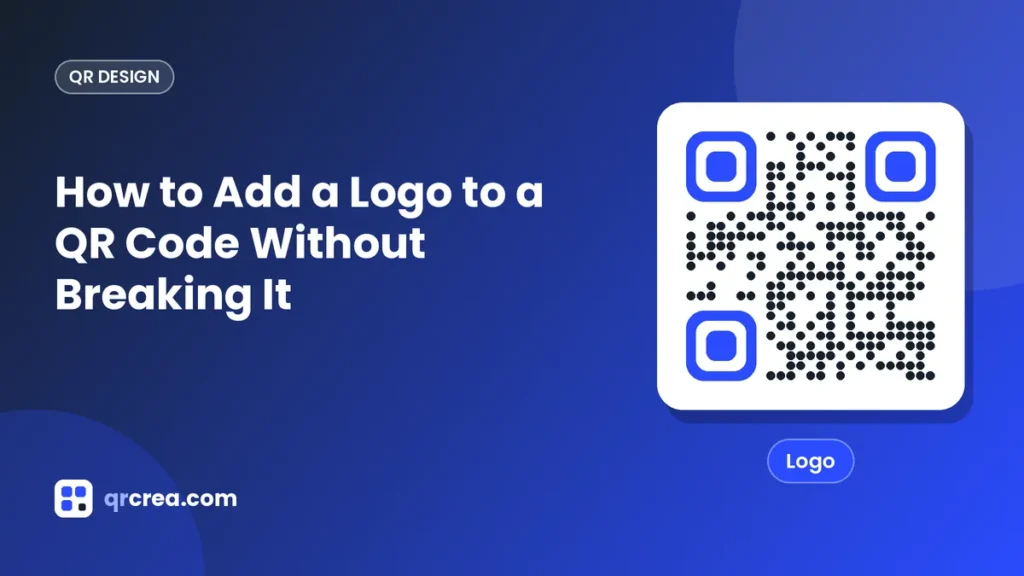
A QR code with your company logo in the center is instantly recognizable, inspires trust and reinforces your brand every time someone sees it. People also scan codes more when they clearly show who they belong to. But placing an image on top of the modules covers part of the information, and if it is not done properly, the code stops working. In this guide we explain how to add a logo safely.
Why a QR code still works with a logo on top
QR codes include error correction: redundant information that lets the data be rebuilt even if part of the code is damaged or covered. When you put a logo in the center, you are deliberately “damaging” that area, and error correction recovers what is missing. That is why the logo must always be smaller than what the code can recover.
Step 1: raise the error correction level
There are four correction levels:
| Level | Approximate recovery | Suitable for a logo? |
|---|---|---|
| L | 7% | No |
| M | 15% | Only very small logos |
| Q | 25% | Yes |
| H | 30% | Yes, the best option |
If you are going to add a logo, use level H or, at the very least, Q. In the QRcrea QR code generator you can adjust this level in the advanced options; when you upload a logo, check that it is set to H.
Keep in mind that a higher level adds more modules to the code, so it is best to use short content (for example, a short URL) so the code does not become too dense.
Step 2: respect the maximum size
Although level H can recover up to 30% of the data, you should not get close to that limit: wear, dirt or poor printing also use up correction capacity. As a practical rule:
- The logo should cover at most 20-25% of the code’s area.
- In linear terms, roughly one third of the code’s width at most.
- It must never cover the three finder patterns in the corners or the alignment pattern.
Step 3: prepare the image properly
- PNG with a transparent background or SVG: the logo will blend in better.
- Simple shape: compact logos (a symbol or an initial) work better than a long horizontal logo with text.
- Margin around the logo: a small white or background-colored border separates the logo from the modules and improves scanning.
- Good resolution: at least 500 × 500 pixels so it does not look pixelated when printed.
If your logo is long and horizontal, use a reduced version: just the symbol or monogram.
Step 4: choose the position carefully
The center is the standard and safest position, because it is where error correction is spread most evenly and where there are no finder patterns. Avoid placing the logo in the corners or along the edges.
Step 5: look after the overall contrast
- Keep dark modules on a light background.
- If your logo is dark, surround it with a white margin so it does not blend into the modules.
- Avoid logos whose edges are very similar in color to the code.
Step 6: test, test and test again
A code with a logo needs more testing than one without:
- Scan it with several phones, including an old or budget one.
- Test it printed at its real size, not just on screen.
- Test it in different lighting conditions.
- If the code is slow to read, reduce the logo size or shorten the content.
Common mistakes
- Logo too large, exceeding the correction capacity.
- Low correction level (L or M) with a large logo.
- Very long content, producing tiny modules around the logo.
- Logo with a square white background that covers more modules than necessary; a transparent background with a tight margin is better.
- Not printing a proof before the print run.
Ideas to integrate your brand without covering too much
- Color the code’s eyes in your brand color.
- Use a frame around the code with your name or a call to action.
- Choose a module shape (rounded, dots) that matches your style.
- Combine a small logo in the center with brand colors instead of one big logo.
Frequently asked questions
Does a code with a logo scan worse?
If you respect the size and the correction level, no. A well-designed code with a logo reads just as fast as one without.
Can I use a photo instead of a logo?
It is possible, but photos have lots of detail and color that make scanning harder. A simple logo works much better.
Does the logo affect how much information the code holds?
It does not change the content, but because it requires a higher correction level, the code needs more modules. That is why short content is recommended.
Conclusion
Adding your logo to a QR code is an excellent way to reinforce your brand and increase trust among people who scan it. The key is to raise error correction to level H, keep the logo under 25% of the area, use a simple image with a transparent background and always test it printed. Upload your logo and create your code with the QRcrea QR code generator.
Ready to create your QR code?
Customize it with your colors and logo, and download it for free in seconds.


