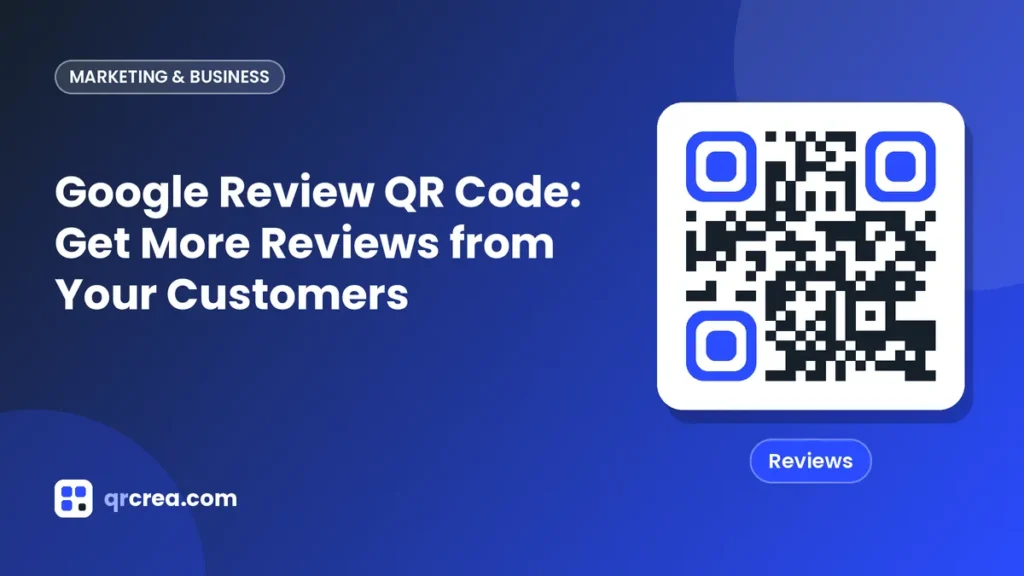
Google reviews are one of the first things customers check before visiting a local business. A good rating with lots of reviews builds trust and helps you rank better on Google Maps. Yet most happy customers do not leave a review, not because they do not want to, but because they do not know how or cannot be bothered to find your listing. A review QR code removes that barrier: the customer scans and the window to write a review opens right away. In this article we explain how to do it.
Why reviews matter so much
- Trust: most consumers read reviews before choosing a local business.
- Ranking: the number, frequency and rating of reviews influence visibility on Google Maps and in local search.
- Insight: reviews tell you what customers value and what you can improve.
- Conversion: a business with lots of recent reviews gets more calls, visits and direction requests.
How to get your listing’s review link
- Open your Google Business Profile (search for your business name on Google while signed in to the account that manages it, or use the Google Maps app).
- Look for the “Ask for reviews” or “Get more reviews” option.
- Copy the link Google gives you. It is a short link that opens the review form directly.
Always use the official link provided by Google: that way you know it leads to the right listing.
How to create the QR code
- Open the QRcrea QR code generator and choose the URL type.
- Paste the review link.
- Customize the code with your business colors and add a star or your logo in the center.
- Scan it with several phones to check the review window opens.
- Download it and print it on the medium you choose.
Where to place it
- On the counter or by the till, in a small stand.
- On tables in restaurants and cafés.
- On the receipt or invoice.
- On a thank-you card included with orders or handed over when a job is finished.
- In the waiting room of clinics, workshops or salons.
- By the exit, while the experience is still fresh.
Add a friendly message: “Enjoyed your visit? Tell us on Google” or “Your feedback helps us improve”.
The best moment to ask for a review
Timing matters as much as the code. Ask for a review when the customer has just had a good experience:
- At the end of a meal, when the bill arrives.
- When handing over a finished job.
- When the customer thanks you or says something positive.
- After solving a problem to their satisfaction.
A simple gesture, like pointing to the code and saying “if you enjoyed it, a review would really help us”, multiplies the response.
What you must never do
Google’s review policies are clear, and breaking them can lead to reviews being removed or penalties on your listing:
| Do not do this | Why |
|---|---|
| Offer discounts or gifts in exchange for reviews | It is prohibited by Google’s policies |
| Ask only for positive reviews or filter customers | It counts as manipulation |
| Write fake reviews or ask family and staff for them | It is prohibited and may be illegal |
| Buy reviews | Prohibited and easy to detect |
Ask all your customers equally for honest feedback.
Reply to every review
Getting reviews is half the job. Replying is the other half:
- Thank people for positive reviews, briefly and personally.
- Reply calmly to negative ones: acknowledge the problem, offer a solution and continue the conversation privately if needed.
- Reply promptly: it shows you care about your customers’ opinions.
Future customers read both the reviews and your replies.
Example of a counter stand
A small acrylic stand with your logo, five stars, a QR code of about 5 cm (2 in) and the text “Enjoyed your visit? Leave us a Google review, it only takes a minute”. Next to the till, staff can point to it as customers leave. It is a minimal investment that can double your number of reviews in a few weeks.
Track your progress
Note your number of reviews and average rating before placing the code, and check again after a month. Seeing the improvement motivates the team and helps you decide whether to add codes in other places, such as receipts or delivery bags.
Frequently asked questions
Does the customer need a Google account?
Yes, posting a review requires a Google account. Most Android users and many iPhone users already have one.
Can I use the same code for other platforms?
You can create a code for each platform (Google, TripAdvisor, Facebook) or a page offering several options, but a direct code to Google usually performs best.
What if I get an unfair review?
Reply politely and, if it breaks Google’s policies (offensive language, false content), you can report it from your Business Profile.
Conclusion
A Google review QR code is one of the simplest and most profitable actions for a local business: a small stand on the counter can multiply your reviews in a few weeks. Use Google’s official link, place it where customers have just had a good experience, ask naturally and reply to every review. Create your code for free with the QRcrea QR code generator.
Ready to create your QR code?
Customize it with your colors and logo, and download it for free in seconds.